Getting the Green Light
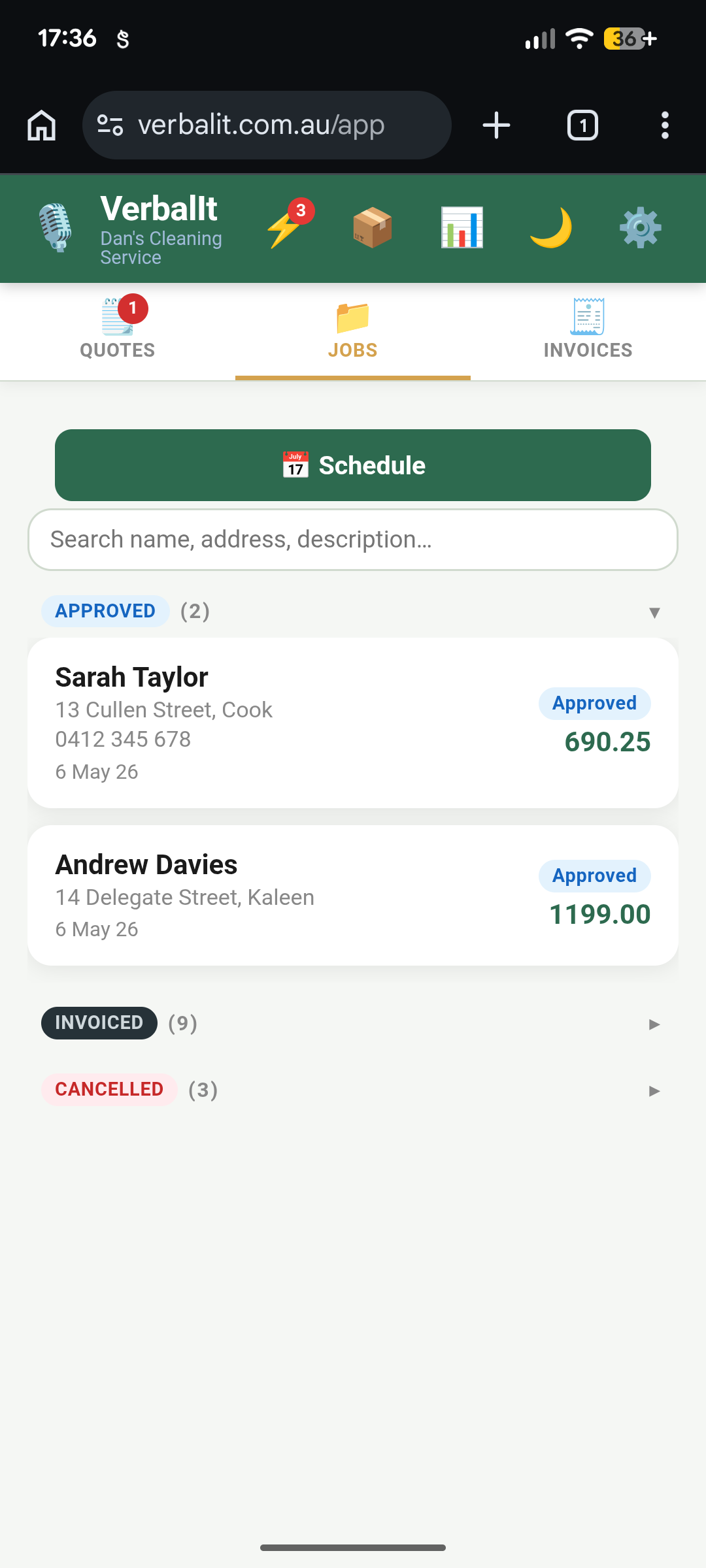
A quote becomes a job the moment your customer approves it.
When you send a quote, your customer gets an email with a link. They review it, and when they're happy, they approve it right there — no phone calls, no chasing.
Once approved, the job appears in your Jobs tab automatically. You didn't have to lift a finger.
Sometimes approvals happen over the phone or in person. No dramas — open the job and tap Mark Approved yourself. Either way works.
Get It On the Calendar
Every job can be scheduled so you know what's coming up.
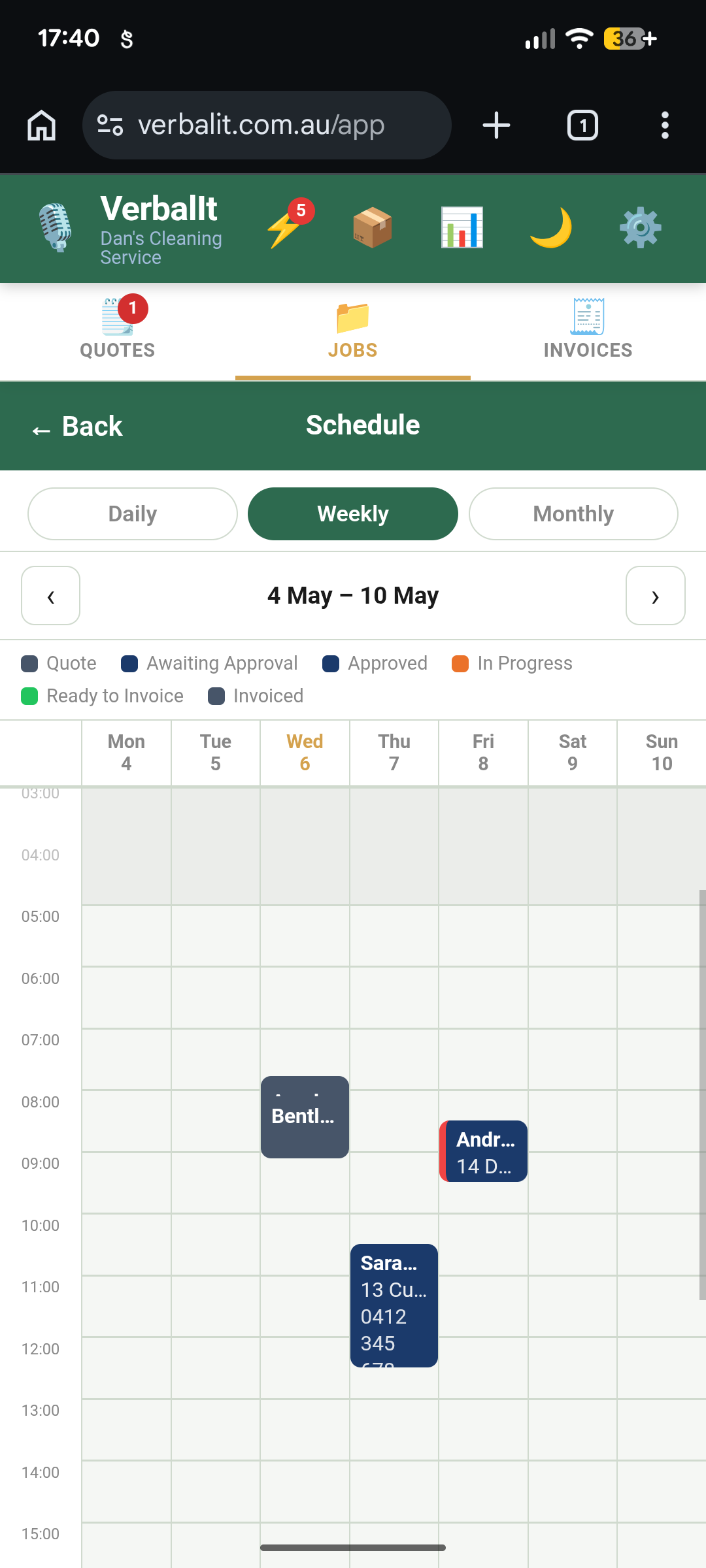
Open a job and set the date. It'll show up in your Schedule view — daily, weekly, or monthly, however you like to plan.
If you've got crew members set up, you can assign them to jobs too. Everyone knows where they need to be.
Need to move a job? Open it up, update the date, and your schedule adjusts. Life moves — your calendar should keep up.
The Job Changes (And It Will)
Scope creep is real. Variations keep you covered.
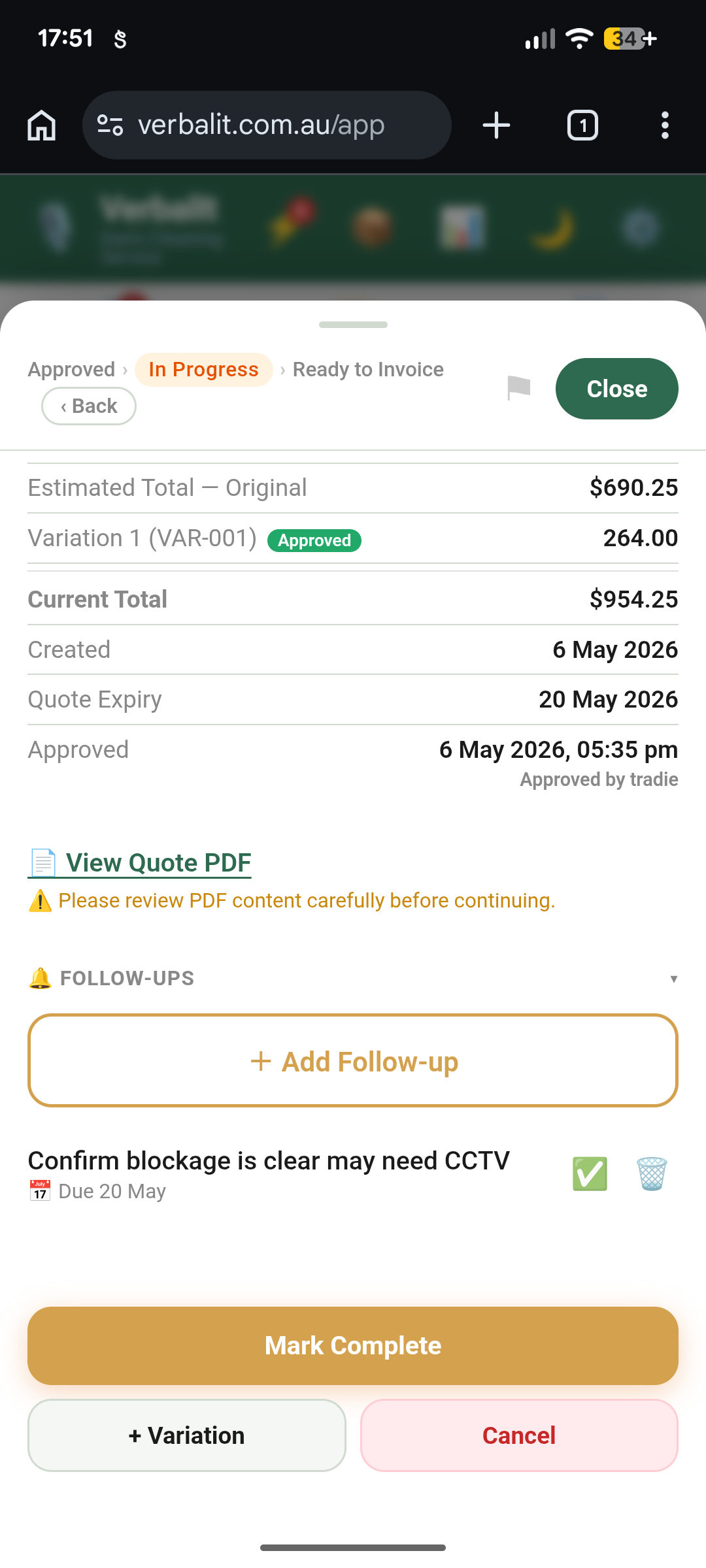
You're mid-job and the customer asks for something extra. Instead of scribbling it on a scrap of paper and hoping you remember to charge for it, tap + Variation.
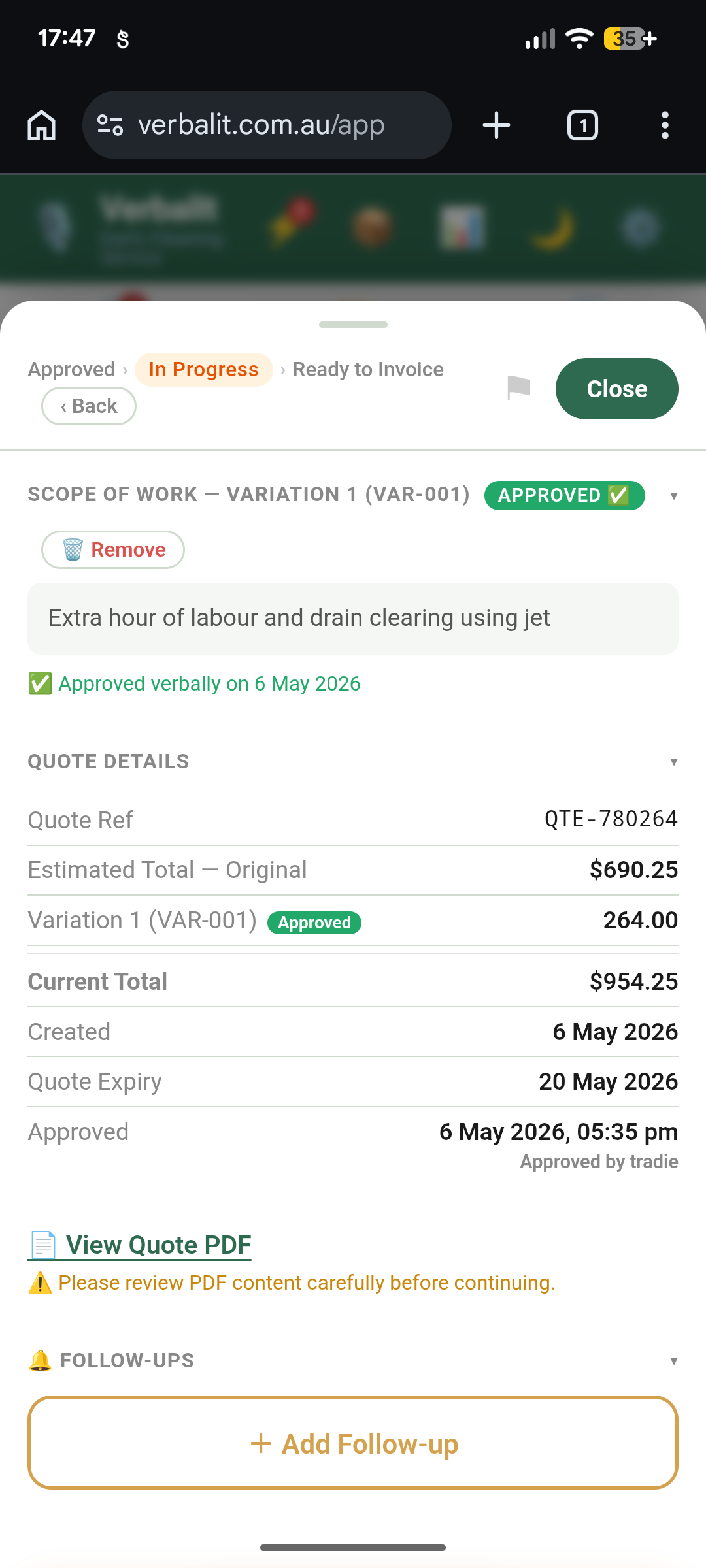
Record or type the extra work just like you did the original quote. VerbalIt adds it to the job with its own line items and total. Your customer can see exactly what changed and why.
The running total updates automatically. No surprises for anyone.
Keep Them in the Loop
Follow-ups stop things falling through the cracks.
Need to check back with the customer in a week? Waiting on materials? Tap Add Follow-up, set a date, and write yourself a note.
VerbalIt reminds you when it's due. No more sticky notes on the dashboard of your ute.
You'll find all your follow-ups and other things that need attention in Actions — your to-do list for the stuff that matters.
Job Done — Time to Get Paid
When the work's finished, getting the invoice out is the easy part.
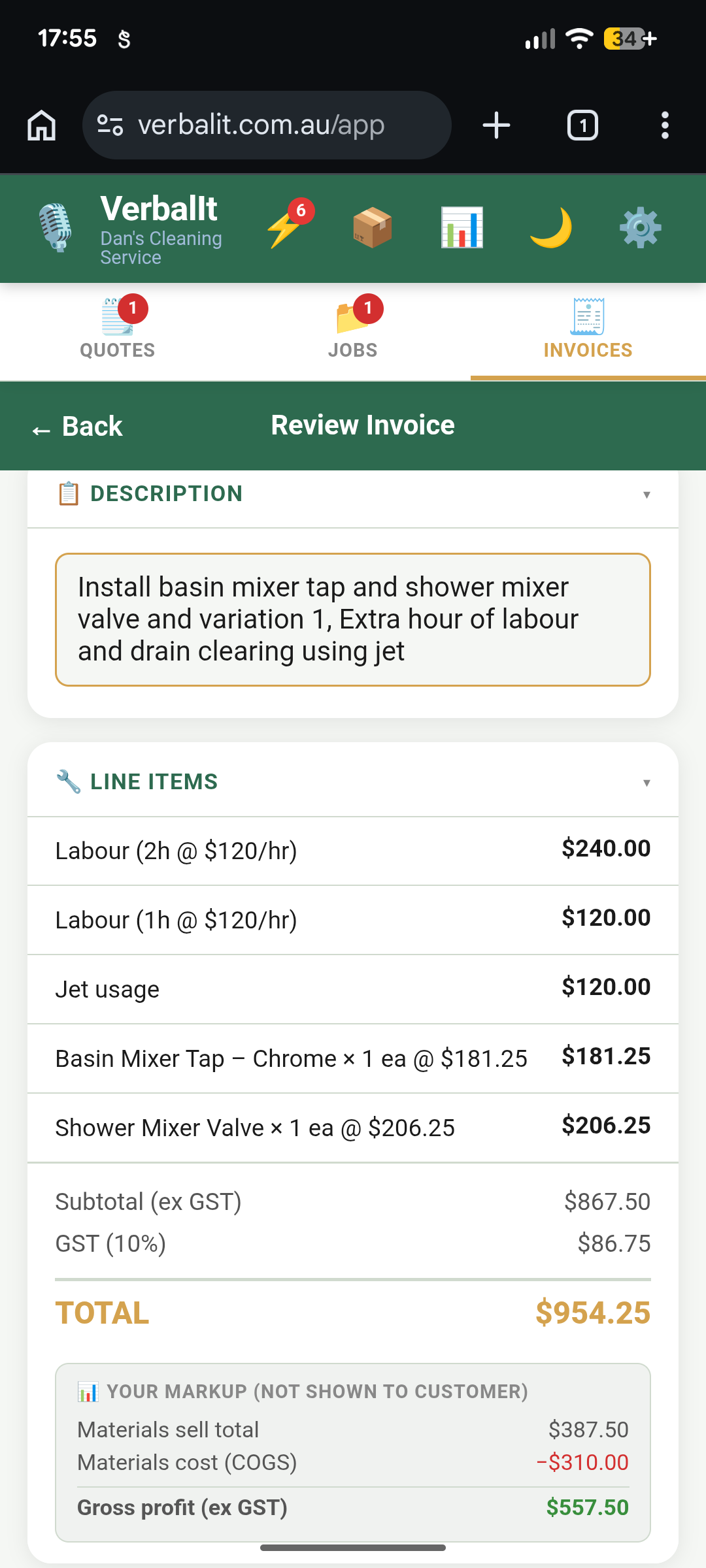
Mark the job as complete, then tap Create Invoice. All the details carry across — customer info, line items, variations, the lot. You're not retyping anything.
Review the invoice, preview the PDF if you want, and hit Send. Your customer gets a professional invoice with your branding, payment details, and a clear total.
When they pay, mark it as paid. That's the full loop: Quote → Approve → Job → Invoice → Paid.
Done properly. Every time.